The second disk holds the apps. The serial mouse option lets QEMU control the os8088 pointer. More emulator options →
Getting started
Introduction
Built first for the IBM PC/XT, os8088 has grown into a graphical operating system for a wider range of x86 PCs. It keeps support for the 8086 and 8088 while offering applications that benefit from faster processors and more memory.
The desktop
os8088 runs on IBM PC/XT-compatible hardware and in emulators. It provides a mouse-driven desktop with windows, pull-down menus, a file manager and a dock. Multitasking lets you keep several programs running at once.
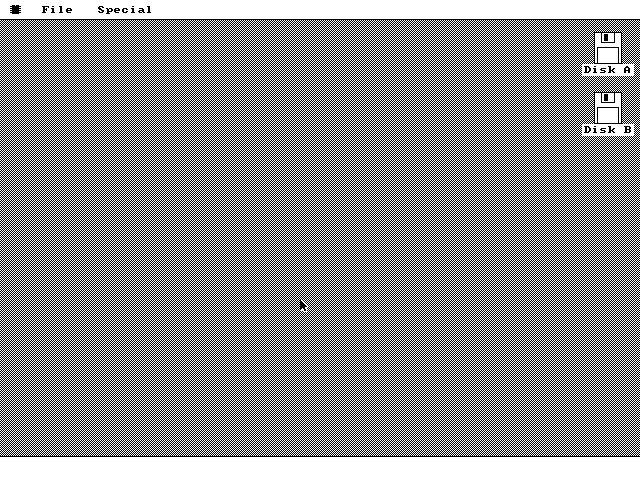
The os8088 desktop after boot. The menu bar, checkerboard desktop, and drive icons are ready to use.
Programs and tools
Applications cover writing, spreadsheets, drawing, image editing, music, video and games. You can also browse the web, use Telnet, transfer files over FTP, run DOS programs, and explore Commodore 64, Apple II and CP/M software through the included emulators.
Start with a compatible PC or emulator, then choose the devices and memory your applications need.
The base system
The minimum is an 8086 or 8088, 128KB of RAM, a supported display adapter and a boot device. The same core also runs on later x86 PCs with a compatible legacy BIOS. A keyboard and mouse provide desktop input.
The full kernel supports CGA, Hercules, EGA and VGA. A Microsoft-protocol serial mouse works on COM1 or COM2; later machines can use a PS/2 mouse. The reduced KERN_SMALL build omits planar color rendering, loadable hardware drivers and extended-memory support. The device pages below describe the full build unless stated otherwise.
Choose room for your workload
128KB is a boot minimum, rather than a promise that every application will fit. More conventional RAM gives programs and their data more room; faster processors help with emulation, media and other demanding work. Extra memory above 1MB can hold bulk data for applications that use it.
On a 286 or newer with memory above 1MB, the full kernel also moves the code it keeps outside its main 64KB segment -- mostly the file, disk, driver and memory routines -- into the first 64KB above 1MB, the high memory area (HMA). That leaves about 37KB more conventional memory for programs. An IBM 5150 can get the same room from an os8088 ROM fitted in its spare ROM sockets.
For USB, CD or CompactFlash, the disk imager guide covers supported media and drive geometry.
Getting started
Running in an emulator
Try a PC/XT on your modern computer.
QEMU
The quick start includes the command for booting the 1.44MB disk pair with a serial mouse.
86Box
The source tree includes ready-to-run configurations for XT, 286, 386, 486 and Pentium machines. Each make target builds the images and launches the matching configuration.
Terminal
git clone https://github.com/jggonz/os8088.git
cd os8088
make deps
make xt
make deps installs the host tools; the macOS setup also fetches the 86Box ROMs. For a QEMU build, run make followed by make run.
Boot it in your browser, or download a floppy image and use an emulator. Releases include 360KB images for period hardware and 86Box, plus 1.44MB images for QEMU. The running page has the exact QEMU command.
Menus use press-drag-release: hold the mouse button, drag to an item, and release.
Supported Hardware
Processors & machines
From the original PC/XT to faster x86 PCs, with an 8086-compatible real-mode core.
Processor families
Processor
What it offers
8086 / 8088
The baseline kernel and native applications; conventional RAM and optional hardware EMS. On an IBM 5150, an os8088 ROM in the five spare sockets can hold the part of the kernel’s code kept outside its main 64KB segment.
80286
The same desktop, plus extended memory: data transfers with the 286’s LOADALL instruction where it works, otherwise through the BIOS. The kernel’s code from outside its main 64KB segment and some drivers move into the high memory area (HMA) above 1MB.
80386 and later
The same real-mode core and HMA use, with faster 32-bit extended-memory transfers and optional 386-specific overlays such as the virtual-machine mouse.
Later PCs need compatible legacy BIOS services. Live USB and CD boot require legacy boot or CSM support. CPU speed and available conventional RAM affect which applications are practical; an emulator running another computer benefits especially from a faster host CPU.
One full kernel detects the display hardware at boot and selects the matching renderer.
Display adapters
Adapter
Desktop mode
Video address
VGA
640 × 480, 16 colors
0xA0000 (planar)
EGA
640 × 350, 16 colors
0xA0000 (planar)
CGA
640 × 200, monochrome
0xB8000 (banked)
Hercules
720 × 348, monochrome
0xB0000 (banked)
Color, monochrome and two displays
The full build includes planar color and software monochrome rendering. The smaller KERN_SMALL build uses CGA or Hercules; an EGA or VGA card falls back to CGA mode.
Supported dual-adapter configurations can put windows on a second display. See dual displays and the EGA walkthrough for examples. Display RAM lives in the adapter area above conventional RAM; it does not increase the application heap.
Use the built-in speaker, add FM synthesis or PCM audio, or send notes to a MIDI device.
Sound devices
Device / interface
Support
PC speaker
Resident tones on both builds; exclusive sample playback in the full build.
AdLib / OPL2
FM synthesis through SOUND.DRV.
OPL3
Two banks of nine FM channels through the sound driver.
Sound Blaster DSP
8-bit DMA PCM playback and recording. The driver adapts single-cycle or auto-init operation to the DSP version; this is not a promise of every later card feature.
Covox-compatible parallel DAC
Sample output through an available LPT port; select the port on the Sound page.
MPU-401 UART
MIDI output to compatible synthesizers, modules and daughterboards.
PicoMEM
The sound driver can initialize its emulated AdLib and Sound Blaster devices.
Enable the hardware you use
The PC speaker needs no loadable driver. In the full build, enable the sound driver in Control Panel, then choose the available device on its Sound page. Sound Blaster DMA uses channel 1 and needs suitable buffers; performance and available features depend on the card and application. On a 286 or newer with memory above 1MB, the driver and its 8KB sound buffer load into the high memory area instead of conventional RAM.
Serial and PS/2 input, plus optional drivers for specific USB and virtual-machine interfaces.
Pointer interfaces
Interface
Requirements
Microsoft serial mouse
COM1 or COM2; the resident driver probes the serial ports and uses the Microsoft protocol at 1200 baud.
PS/2 mouse
An AT-style 8042 auxiliary port on a later machine. Included in the full kernel; the 8086/8088 path does not probe it.
CH375 / PicoMEM USB mouse
USBMOUSE.DRV supports a USB boot-protocol mouse on the WCH CH375B controller, including the Book8088 socket at ports 0x260/0x261. It also accepts USB mouse reports from a detected PicoMEM card.
Virtual-machine absolute pointer
VMMOUSE.DRV uses the VMware backdoor protocol on a 386 or newer guest in a compatible emulator. This provides a pointer without capture.
Choose the matching interface
The USB mouse driver supports the CH375 controller and the PicoMEM card's separate USB-mouse interface. It is not a driver for arbitrary PC USB host controllers. It avoids taking over a USB device already configured by the BIOS, such as a boot flash drive on the same controller.
The QEMU quick start disables the virtual-machine mouse port and supplies a serial mouse. The browser demo uses the absolute-pointer path. On physical machines, a passive USB-to-PS/2 adapter works only with a mouse that itself supports PS/2 signaling.
Scroll wheel
The full kernel reads a mouse wheel on all four interfaces: a serial wheel mouse that identifies itself as an IntelliMouse, a PS/2 wheel mouse, a CH375 USB mouse that sends a wheel byte, and the virtual-machine pointer. The CH375 wheel has not yet been tried on a Book8088. The PicoMEM card reports no wheel, and the reduced kernel ignores one.
The wheel scrolls the front window, the one that receives typing, wherever the pointer is. One notch moves three lines of text. Disk windows, file dialogs and programs with a scroll bar respond to it.
PC-compatible keyboard input through the machine's BIOS, with scan-code handling for held keys and desktop controls.
Keyboard interfaces
Original PC/XT keyboards and AT/PS/2 keyboards work through compatible PC BIOS keyboard services. The kernel reads BIOS key events and also tracks keys for features that need press and release state.
A USB keyboard on a later machine depends on firmware legacy keyboard emulation or a compatible active adapter. os8088 does not provide a general USB keyboard host driver. A passive USB-to-PS/2 adapter needs a keyboard that supports the PS/2 protocol.
Desktop controls
Keyboard support includes text entry, application shortcuts and keyboard pointer controls. The full build includes keyboard settings in Control Panel; the reduced kernel leaves out some desktop configuration features. Individual applications can handle additional keys for navigation or games.
Floppy disks, controller-backed hard disks, and boot media exposed by a compatible BIOS.
Storage interfaces
Device
Path and requirements
Floppy drives
BIOS disk services, with 360KB, 720KB, 1.2MB and 1.44MB FAT12 images. Match the image to the drive and media.
MFM / controller-ROM hard disks
HDD.DRV first uses BIOS disk services for drives 0x80/0x81, including XT controllers with their own ROM.
IDE / ATA
BIOS access when available, or native CHS task-file access at 0x1F0/0x170 on a 286 or newer with a 16-bit bus.
CompactFlash
Through an IDE adapter or controller BIOS. The image geometry must match what the target machine reports.
USB boot media
A legacy BIOS presents the live USB image as a hard disk. A generic USB mass-storage driver is not required for this path.
CD boot media
Legacy El Torito boot support. The live CD uses a temporary RAM shadow for writes.
Filesystems and preparation
The filesystem supports FAT12 and FAT16. Controller setup, partition limits and disk geometry still apply; a large modern device does not imply that every partition layout is usable.
On a 286 or newer with memory above 1MB, HDD.DRV runs from the high memory area and takes no conventional RAM. The Hard Drive page in Control Panel provides mounting and disk tools. Use the imager guide to prepare physical media and the storage and boot media reference to choose release images.
Ethernet through an NE1000/NE2000-compatible adapter, or a parallel cable to another computer.
Ethernet
ETHER.DRV supports the NE1000/NE2000 register family using programmed I/O. The driver polls the adapter, so it does not claim an Ethernet IRQ or DMA channel. Automatic probing checks common ISA I/O bases; the Control Panel Ports page can pin a device to a specific address.
Enable the driver, then use Control Panel's Ethernet page. DHCP is the default, with static configuration available. The stack supplies ARP, IPv4, ICMP echo, UDP, DNS and TCP for applications such as the browser, Telnet, the FTP server, The Wire and WireChat.
Parallel link
NET.DRV uses a LapLink-style parallel cable and a matching host-side server. It can expose remote files or disk images and provide socket access through the host. This is a separate transport from Ethernet and needs the corresponding os8088 host tools. On a 286 or newer with memory above 1MB, the driver loads into the high memory area instead of conventional RAM.
See Networking for the distinction between direct HTTP and the host proxy used for HTTPS sites.
Conventional RAM, hardware EMS and extended RAM have different roles.
Conventional RAM
The kernel and application code live below the BIOS-reported conventional-memory ceiling, at most 640KB. Increasing conventional RAM from 128KB to 256KB, 512KB or 640KB increases the shared heap available for programs, data and loadable system components.
Expanded memory (EMS)
EMS.DRV supports boards with consecutive LIM-style page registers, including the Lo-tech 2MB board and PicoMEM EMS. Four 16KB pages map into a 64KB window below 1MB. This works on an 8088 and lets applications that use the EMS API access additional data without extending the conventional heap.
The page frame and I/O registers must not conflict with another device or option ROM. Other EMS register families are not automatically compatible.
Extended memory (286 and newer)
The full kernel loads XMEM.DRV when suitable memory above 1MB is reported. It verifies the A20 address line and manages everything above the first 64KB as a pool for data. A 286 copies with its LOADALL instruction where that works, and otherwise through BIOS services; a 386 or newer copies with 32-bit moves. The smaller kernel omits this facility and the loadable EMS driver.
The first 64KB above 1MB is the high memory area (HMA), the one part of extended memory that real-mode code can reach directly. XMEM.DRV reads COLDHMA.SYS from the system disk and moves the kernel’s code kept outside its main 64KB segment there, which returns about 37KB of conventional RAM to programs. The sound, hard disk and parallel-link drivers load into the rest of the HMA when they are enabled. If the file is missing or the copy does not check out, that code simply stays in conventional RAM.
Applications are different: neither extended RAM nor EMS relocates application code above conventional memory. The RAM disk and applications that explicitly support these stores can use the extra capacity. Explore the memory map for each configuration.
The kernel in ROM (IBM 5150)
An IBM 5150 has five spare ROM sockets beside its BIOS. An os8088 ROM built for them holds that same kernel code, and the kernel runs it from there: about 37KB more conventional RAM on the full kernel and 21.5KB on the smaller one. The smaller kernel’s ROM also carries the file dialog, Cut, Copy and Paste, the Control Panel and the formatter, so they work without the system disk in a drive. A ROM is built for one kernel and is ignored by any other; every disk boots normally without one. See the kernel in ROM and the HMA for how both work.
Keep time with the PC timer and, when present, a battery-backed real-time clock.
System timer
The PC's programmable interval timer supplies the system ticks used by scheduling and timekeeping. A battery-backed clock is optional: a machine without one can use a date and time set for the current session.
Real-time clocks
The full kernel supports AT-compatible MC146818 CMOS clocks, MM58167-based XT clock cards, RP5C01 / Toshiba TC8521 clocks, and BIOS time and date services. Detection checks the direct interfaces and uses BIOS services as a fallback; a supported interface seeds the system clock at boot. Time then advances from the PC timer.
Control Panel writes date and time changes through the detected interface. Some BIOS implementations provide clock reads without working write services, so persistence depends on that firmware. The reduced kernel leaves out the hardware RTC ladder and keeps session time instead.
Standard PC ports connect pointing devices, a serial cable to a second PC, audio hardware and the parallel network link.
Serial ports
COM1 and COM2 support Microsoft-protocol serial mice. The desktop's serial mouse setup uses the corresponding PC UART interface; QEMU can emulate this with -chardev msmouse.
A desktop program can also borrow a serial port to reach another PC through a null modem cable, a serial cable with its send and receive wires crossed. The game WireFleet works this way. SERIAL.DRV, the code that runs the borrowed port, is read from the system disk when the program connects and released when it disconnects or closes. One program can hold a port at a time. The port with the serial mouse is never lent, so the mouse keeps working. Only COM1 and COM2 at the standard addresses the BIOS reports are used. The program chooses the speed: WireFleet uses 2400 baud. The machine cannot hibernate while a port is borrowed.
Parallel ports
A compatible LPT port can serve a Covox-style DAC or the LapLink network cable. Configure the intended port and driver in Control Panel; a connector's presence alone does not identify which peripheral is attached.
Port addresses can overlap with expansion hardware. The Ports page allows supported devices to be pinned to their configured I/O address, reducing unwanted probing. Keep a port available for one active device at a time.
What ships on each disk, and what each thing does.
Choose a disk size and an image, then select a file to read its manual. Browse programs, drivers, sample files and host tools.
Disk inventories, file sizes, free space and embedded text are read from 71 images built from source commit 6db95740 (build 245). Use boot, application and driver files from the same release. Screenshots and videos illustrate the applications; their appearance can vary between builds.
/
Disk
Get Info
Technical Details
Storage & boot media
Choose a boot image, then keep its application and driver files from the same release.
Floppy image pairs
Capacity
Boot disk
Application disk
360KB
os8088-360.img
apps360.img
720KB
os8088-720.img
apps720.img
1.2MB
os8088-120.img
apps120.img
1.44MB
os8088.img
apps.img
Programs on additional disks
Some larger applications and their data ship on separate images. Use the Disk guide to browse them. The 360KB release also splits media onto additional disks to fit the smaller format.
A program’s own artwork, second code segment or ROM images are carried inside its .O88 file, so copying that one file copies the program. Data that goes with a program, such as RunCPM’s drive A folder or MIDIRack’s wavetable bank, is still kept in separate files.
The 360KB boot disk uses 512-byte clusters, which wastes less space on small files, to make room for the system, its drivers and the Sticky Apps. At that size, Paint and Minesweeper are on apps360.img, and the typefaces and Font Viewer are on office360.img. The larger boot disks still carry them.
Use a boot disk and application packages from the same release. The package API changes as the system develops, so an older application disk may not work with a newer kernel.
Live USB and CD
os8088-usb.img is a raw hard-disk image with a FAT16 partition and applications. The live ISO boots the same system through El Torito. Both require legacy BIOS boot support.
USB media can retain changes. Writes on the live CD go to a temporary RAM shadow and disappear when the machine shuts down. See live media in action.
From source, make live builds the USB image and ISO; make usb and make iso build them separately. The imager workflow covers writing media and matching CompactFlash geometry.
From the first 512-byte sector to a running desktop: how os8088 loads itself into memory.
Follow the boot sequence
os8088 starts through a legacy PC BIOS. The BIOS places a boot sector at 0000:7C00, linear address 0x07C00, and transfers control to it. The first code runs in 16-bit real mode with 8086-compatible instructions.
▦From BIOS to desktopFloppy
Read source
→
RAM destination
Executing:
This walkthrough shows the order of work, rather than elapsed time. Stages take different amounts of time on different machines.
What the disk contains
A floppy is a FAT12 volume. Its boot sector contains both filesystem parameters (the BPB) and stage 1 code, followed on disk by the FAT copies, root directory and data area. The image builder places KERNEL.SYS first in the data area, starting at cluster 2, in one contiguous run.
A boot floppy, from its first sector onwardSchematic; block widths do not represent file sizes.
Boot sector512 bytes BPB + stage 1
FAT copiesAllocation tables
Root directoryFile entries
Data areaKERNEL.SYS first, then other files
KERNEL.SYS in a default compressed build
Boot blobLoader, splash and one-time initialization
Plain kernel headCode needed while the floppy is loading
LZ4-packed tailExpanded before entering the kernel
Stage 1 calculates the data-area position from the BPB. It reads the boot blob from the beginning of KERNEL.SYS; it does not search the directory or walk the kernel's FAT chain. The build tools supply the blob size, destination and verification values when they assemble the boot sector.
Current default builds compress the kernel's tail with LZ4. The boot blob stays uncompressed because it contains the decompressor. The kernel head also stays plain so display-detection code is available while the floppy loader updates the splash. A NOKZIP=1 build keeps the body uncompressed.
Hard disks, USB and CD
A hard disk starts with a master boot record (MBR). It chooses the active partition and loads that partition's volume boot record (VBR). The VBR uses the volume's recorded geometry and partition base to read the boot blob and kernel body in two passes. It does not enter the floppy stage-2 loader; a compressed build calls the blob's expansion helper before entering the kernel.
The installer records where the contiguous kernel run starts; a fresh format places it first, while an installation that preserves existing files can use another free run. Live USB ships a prepared FAT16 hard-disk image. Live CD wraps that image with El Torito hard-disk emulation, letting the BIOS expose the same disk interface. See Storage & boot media for choosing an image.
Make room, then give it back
The kernel's destination begins at 0060:0000, linear address 0x00600. Loading it would overwrite the original boot sector at 0x07C00, so the floppy boot sector and hard-disk VBR relocate to the top of conventional RAM first. They keep a 2KB stack immediately below their 512-byte copy. The ceiling comes from BIOS INT 12h.
Conventional RAM during loading and after startupLow addresses at the top. Regions are schematic; their sizes depend on the build and machine.
While the kernel loads
Low memory & BIOS dataBelow 0x00600
Kernel destinationBegins at 0x00600
Boot blob1.5KB above the future heap floor
Remaining conventional RAMBetween the blob and loader stack
Temporary loader stack2KB below the relocated sector
Relocated sectorThe top 512 bytes
When the desktop is ready
Low memory & BIOS dataBelow 0x00600
Resident kernel & buffersBegins at 0x00600; task stacks are here
Shared conventional heapThe boot blob, loader stack and sector no longer reserve space. Applications, drivers and system data share the heap.Ends at the BIOS conventional-memory ceiling
The boot blob remains available after the disk read: it also holds the splash and one-time kernel initialization. The kernel switches to its own task stack, initializes the system, finishes the splash, then lowers the heap floor to reclaim the blob. The full build also compacts claims to join the recovered space with the rest of the heap. Stage 1 loads the blob 1.5KB above the future heap floor so that the end of the kernel’s compressed tail cannot reach it, and that gap is reclaimed with the blob.
The kernel keeps the code that lives outside its main 64KB segment at the top of its resident area, just under the heap. When that code runs from somewhere else, the heap floor drops by that much more: about 37KB on the full kernel. The first step of initialization looks for an os8088 ROM in an IBM 5150’s spare sockets and uses its copy if the ROM was built for this kernel. On a 286 or newer with memory above 1MB, the extended-memory overlay copies the code into the high memory area instead, from COLDHMA.SYS. Just before the first desktop paint, the kernel opens every link in the boot disk’s AUTOSTRT folder, unless Shift is held.
The top-of-RAM loader copy and stack are temporary too; the running kernel does not reserve them. On the hard-disk path, the MBR briefly uses 0x00600 while it chain-loads the VBR; the later kernel load replaces that scratch copy. Explore Memory model for exact resident boundaries and different RAM configurations.
Read checks and boot failures
The floppy loader splits BIOS reads at track or cylinder boundaries and 64KB DMA boundaries, while limiting each request to the sectors still needed. It resets the controller between failed attempts and stops after repeated failures.
Some floppy BIOSes report success after returning the wrong sectors across a head boundary. When the faster cylinder-read path is used, stage 2 checks a known word from the built kernel. A mismatch, or a failed crossing read, makes it retry with track-bounded reads. This transfer check is not a cryptographic signature.
Message
What it means
RAM
The floppy loader cannot fit the kernel's startup layout below its temporary stack.
Loader checksum
The boot blob's word-sum check failed before stage 2 could run. Diagnostic builds may print a shorter message and a value.
Disk error
A BIOS disk read failed after retries. This can occur in the floppy loader or MBR.
No active partition
The MBR found no partition marked active.
R / G / D
The hard-disk VBR reports insufficient RAM, invalid recorded geometry, or a failed disk read, respectively.
For setup, start with Booting on real hardware or Running in an emulator. When reporting a boot failure, include the medium, image version, RAM size, controller or emulator, and the exact screen message.
Connect through Ethernet or a parallel link, and choose direct access or a host-side web proxy.
Direct Ethernet
With a supported adapter, enable ETHER.DRV and configure the Ethernet page in Control Panel. DHCP supplies the address by default. Applications share the driver's socket interface for TCP and UDP connections.
The native browser can use HTTP directly. Telnet logs in to other computers, and the FTP server lets another computer copy files to and from this one. The operating system does not terminate TLS for HTTPS sites.
Services on os8088.com
Two programs talk to the os8088.com website over plain HTTP, so they need an Ethernet card and a route to the internet but no proxy. The Wire downloads programs from the online software library. WireChat joins chat rooms: four public rooms and private messages, with a member list and friends. The chat server holds each request until there is something new, so a message arrives in about a second while an idle machine sends one request every 50 seconds. The server screens every message for abuse, and removes a message flagged from two addresses other than its author’s.
Web proxy
The source includes tools/os88proxy.py, a host-side Python web proxy that fetches HTTPS pages and simplifies content for the native browser. Run it on another computer, then open that computer's address and proxy port in the os8088 browser. In QEMU's user network, the host is normally 10.0.2.2; on a physical LAN, use the host's LAN address.
The proxy handles the upstream encryption. It does not add TLS support to every os8088 network application. See the browser walkthrough and The Wire.
Parallel connection
NET.DRV uses a LapLink cable with the project's matching server tools on the other end. It can serve remote files and disk images as well as bridge socket requests. Enable only the driver and LPT port intended for that connection.
See how the kernel, applications, video hardware and extra memory share the PC address space.
Choose a RAM configuration to explore the layout. Conventional RAM holds the desktop and program code; expanded and extended memory provide separate stores for applications that use them.
RAM capacity and CPU are independent choices. This model assumes a standard PC memory map, successful hardware detection and, when needed, a working A20 gate and BIOS extended-memory report. KB and MB here mean 1,024 and 1,048,576 bytes.
▦Memory organization640KB
BIOS conventional
Resident kernel
Shared heap span
Extended data pool
Machine memory map
Linear addresses increase from left to right. The bar ends at the selected RAM size; 1MB+ shows a 2MB example. Every block uses the same scale in this bar.
0x00000
Conventional RAM, enlarged
0x00000
Above 1MB
0x100000
Address ranges
Ranges include their first and last byte. These are layout boundaries, rather than measurements of running applications.
Region
Linear addresses
Size
Role
One heap, two allocation directions
The interrupt vectors and BIOS data occupy the first 1.5KB. The kernel starts at 0x00600. Its image, resident cold code, FAT window, disk buffers, task stacks and optional planar-decoder buffers determine where the conventional heap begins.
Data claims search upward from the heap's low end; application regions search downward from the BIOS-reported conventional-memory ceiling. Both use the same allocator. Drivers, fonts, overlays and other system features also claim space here. There is no fixed application pool, and the heap span shown above is not all free after boot.
Like Task Manager's RAM view, the diagram follows address order. Task Manager additionally draws live claims and package locations; this documentation cannot know which programs or drivers your machine has loaded.
640KB, the adapter area and 1MB
BIOS INT 12h supplies the conventional-memory ceiling, normally at most 640KB in the standard PC map shown here. Firmware may reserve some of that RAM, including an Extended BIOS Data Area. A machine with 1MB installed therefore does not offer a 1MB application heap.
0xA0000–0xBFFFF contains video-memory windows. The rest of the first megabyte holds adapter ROMs, firmware and optional mapped hardware. The diagram shows standard address windows, not a claim that every byte in those windows is populated. Machine-specific remapping of RAM around this area is not modeled.
EMS, HMA and extended memory
Hardware EMS switches 16KB pages into a 64KB frame below 1MB. The optional example uses 0xE0000 and appears in the map when the selected span reaches that address; the driver probes frames at E000, D000 and C000 segments, avoids detected option ROMs, and uses whichever supported board answers. The frame is a window into the board's memory, not another 64KB of conventional heap.
On a 286 or newer with the full kernel and usable RAM above 1MB, XMEM.DRV keeps the first 64KB for the HMA. Real-mode addresses reach 65,520 bytes of it, through 0x10FFEF; the last 16 bytes are outside the HMA. The kernel’s code from outside its main 64KB segment moves there from COLDHMA.SYS, so on those machines it leaves conventional RAM and the heap starts that much lower, as the map shows. The sound, hard disk and parallel-link drivers, when enabled, load into the space under it. The extended data pool starts at 0x110000.
An IBM 5150 can run the same code from an os8088 ROM in its spare sockets, at 0xF4000, with the same effect on the heap. The map does not model a ROM.
A 286 copies with its LOADALL instruction where that works, and otherwise with BIOS INT 15h/AH=87h; neither reaches addresses at or above 16MB. A 386 or newer copies with 32-bit moves. Sizing still depends on the older BIOS AH=88h report; the 1MB+ preset illustrates a 2MB machine. Extra RAM is a data store for explicit users such as a RAM disk, media buffers or the disk cloner. It does not increase the address range for application code.
Build and hardware differences
The full and reduced builds have different resident sizes. The reduced build omits planar color rendering, loadable hardware drivers and extended-memory support. An EMS board can still occupy address space, but this build cannot load its driver. In the full build, 512 bytes of planar-decoder buffers return to the heap when no VGA is detected. This decision follows the detected hardware, even if a VGA machine is currently displaying a monochrome mode.
Application primary images plus zero-initialized data are limited to 60KB each, with additional heap claims and overlays available. All code shares an unprotected real-mode address space; allocations express ownership, not hardware isolation.
Layout measured from source commit 6db95740 using tools/kernsize.py --json --strict for both builds. These figures describe that source snapshot and can change between releases. Implementation: kernel layout, allocator, Task Manager, extended memory, and EMS.
Developer guide
Your first application
Write a program or bring an existing one to os8088.
Start building
Start with the Hello application. It creates a window, draws text, registers menus and supplies an About dialog. Its assembly source uses the shared os88api.inc interface.
In a source checkout with the build dependencies installed, build the package, put it on a separate application disk, then boot it in QEMU:
Terminal
make build/hello.o88
python3 tools/os88disk.py --size 1440 -o build/hello-apps.img build/hello.o88
make run RUNAPPS=build/hello-apps.img
Open disk B: and launch HELLO.O88. For an interactive C example, see chello.c; make chello builds its disk, and make run RUNAPPS=build/chello.img boots it.
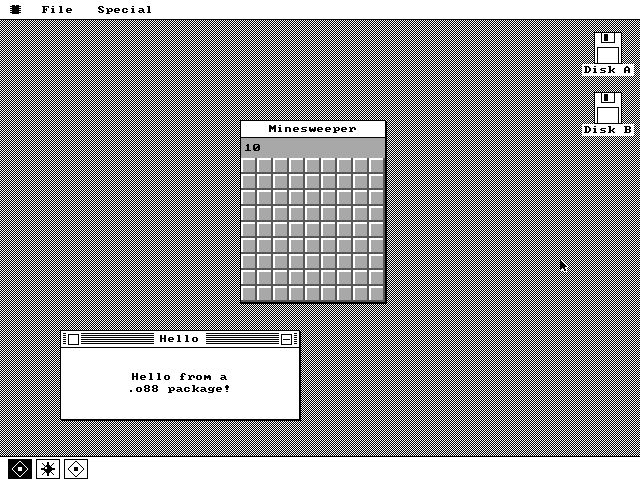
Two programs running together. Each program has its own memory segment.
The developer guide covers the workflow and tools for contributing.
Developer guide
Language & toolchain
Build real-mode applications in NASM assembly or C through SmallerC.
Assembly and C
The boot code and kernel are NASM assembly. Native applications use assembly, C or a mix of the two. SmallerC emits NASM source; the project's checking and runtime tools adapt it to the os8088 calling convention, then NASM produces the program image.
C programs call the same window, drawing, file and memory services as assembly programs. There is no general C standard library. The C toolchain guide explains the supported subset and build setup.
C constraints
Use static storage when an object's address must be passed to the OS. Avoid taking the address of automatic variables, copying structures by value, or using unsupported wide and floating-point types. The checking tool enforces these rules and the small stack-frame budget; consult the C guide before porting library code.
Package size and memory
A primary application image plus its zero-initialized data must fit within 0xFE00 bytes (63.5KB). Memory is handed out in whole kilobytes, so a program over 63KB takes a full 64KB. That limit does not describe the total package file or all memory an application can use. Applications can claim heap memory, load overlays and carry additional embedded parts. An overlay can itself be carried inside the program’s file, so a program that needs a second code segment still ships as one file.
Programs share a real-mode address space without memory protection. Use the OS allocation and lifecycle APIs to own and release memory. The memory map shows where primary images and data claims fit.